AI Tools
How to Use PopAi: Beginner's Guide
By GearsClaw Editorial Team | Published August 6, 2026 | Updated August 6, 2026
The first time I opened PopAi, I didn’t need another “welcome to AI” speech. I needed to know where to click, what each sidebar tool actually does, and which steps matter before you hit Generate.
I had a PDF open on one monitor, a half-written outline on the other, and about forty minutes before I had to look prepared. PopAi looked promising. The interface still felt like a lot at once: chat, documents, images, presentations, templates, plan limits.
This guide is the walkthrough I wish I’d had. We’ll go step by step: sign up, learn the dashboard, chat with a real document, talk to images inside that file, build a presentation the right way, use templates, then check Free vs Plus vs Pro so you don’t get stuck at export.
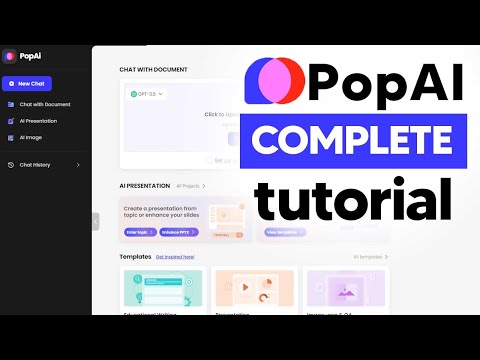
If you want a video alongside this, here’s a solid starter walkthrough: How to use PopAi. Otherwise, open PopAi or jump straight into AI PowerPoint and follow along.
Key takeaways
- PopAi is a personal AI workspace for chat, documents, images, presentations, and templates.
- Learn the left sidebar first. Almost every useful workflow starts there.
- Chat with Document works best when you ask specific questions, then reuse the answers in slides.
- Click images inside an uploaded PDF for insights, data extract, translation, or chat.
- Build and edit the outline before you generate slides. That step saves the most time.
- Plans are Free, Plus, and Pro. Plus is the first plan that unlocks full PPTX/PDF export and watermark removal.
- Credits and doc quotas jump hard from Free to Plus to Pro. Confirm live numbers in your account.
User Experience
Real walkthrough clips showing how this workflow looks in everyday use.
What PopAi is (and what beginners should expect)
PopAi is an AI workspace built around everyday work: chatting with documents, explaining images, generating content, and turning ideas or files into presentations. Think of it as a smart assistant for research nights, class decks, pitch drafts, and weekly business updates — not a design suite you need to study first.
Beginners usually get the most value from three loops. First, upload a PDF and ask it questions instead of hunting through page numbers. Second, click charts or screenshots inside that file and pull insights. Third, turn a clear prompt (or that same document) into an outline, then slides, then an editable export.
You do not need advanced technical skills. You do need specific prompts, a habit of reviewing the outline, and a realistic plan choice. Free is fine for learning the clicks. Paid plans matter once you need clean PPTX/PDF export, higher quotas, or watermark-free decks.
Step 1: Sign up and get into the dashboard
Open your browser and go to PopAi. Click Sign Up in the top right.
The fastest path is Google account signup. Email signup may also be available, but Google gets you into the dashboard with fewer friction points. After signup, PopAi drops you into the main hub — your personal AI workspace.
If welcome prompts or an onboarding tip appear, click through them once. They are not fluff. They map the left sidebar tools you’ll keep using: Chat with Document, AI Presentation, AI Image, templates, and history.
PopAi offers a free account to start. Upgraded plans unlock higher quotas, stronger models, watermark removal, and full presentation export. Don’t buy anything yet. Confirm the basics work first.
- Visit popai.pro
- Click Sign Up (top right)
- Use Google for the quickest setup, or email if you prefer
- Land on the dashboard and skim any welcome / onboarding tips
- Stay on Free until you’ve tested chat, one PDF, and one outline
Step 2: Learn the layout before you upload real work
The layout is simpler once you name the parts out loud.
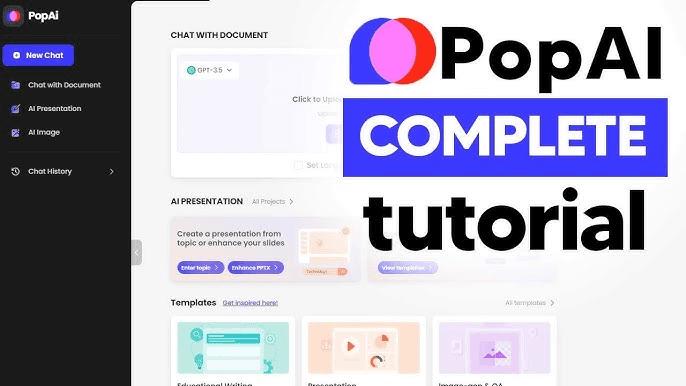
The center pane is your workspace. That’s where chat answers, document viewers, outlines, and generated slides show up. The left sidebar is the control strip: Chat with Document, AI Presentation, AI Image, templates / projects, and chat history. Top navigation usually holds account settings, help, and the Upgrade Plan entry.
Look for quick-start actions too — things like creating a PPT or uploading a document. Drag-and-drop support is common, and PopAi usually gives real-time feedback while a file processes.
Do one boring test before you drop a client PDF into it. In the chat box, ask something simple like, “What is the longest river in the world?” You’re not trying to impress the model. You’re confirming the chat loop works, the answer lands in the center pane, and you know where New Chat / history live.
Once that lands, you’re oriented. Everything useful hangs off that left sidebar.
- Center pane = chat, viewer, outline, and results
- Left sidebar = Chat with Document, AI Presentation, AI Image, history
- Top area = account, help, upgrade
- Test with one simple chat question before uploading real files
Step 3: PopAi plans explained — Free, Plus, and Pro
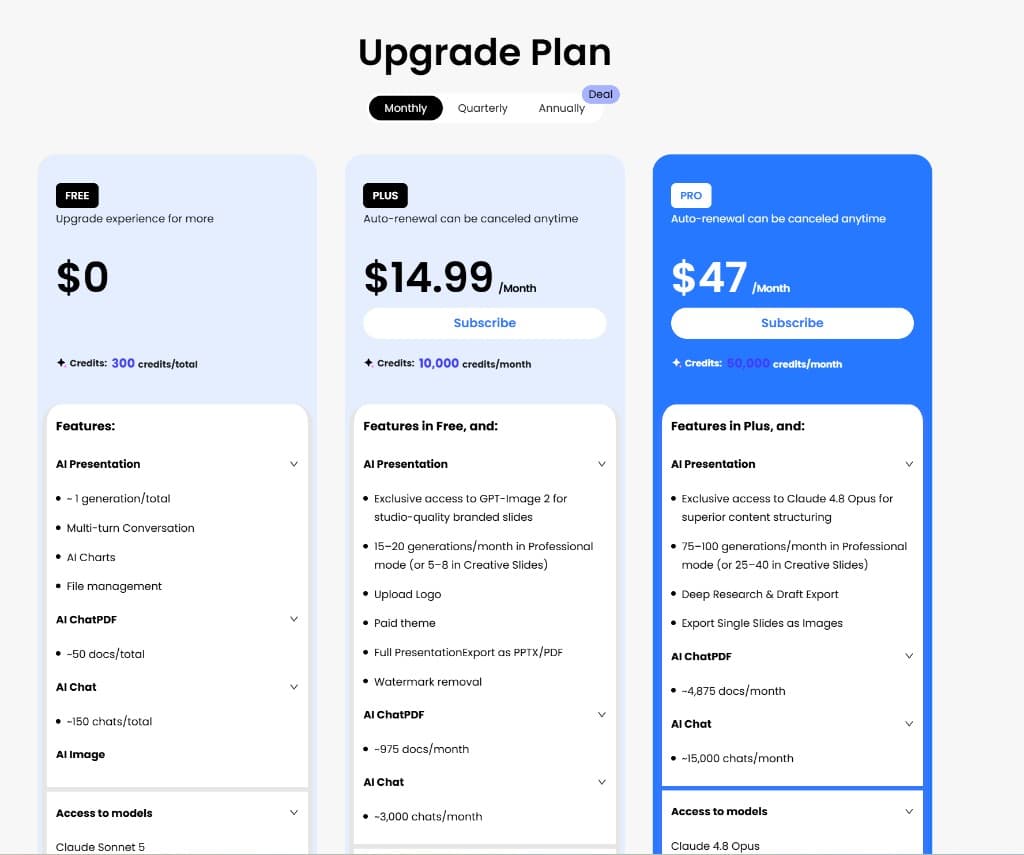
Check PopAi plans before you build anything important. Free, Plus, and Pro feel different fast — especially around presentation generations, ChatPDF docs, credits, and whether you can download a clean PPTX.
Monthly, quarterly, and annual billing are available. Annual often runs about 20% off when the deal banner is live. Use the table as a practical map, then confirm the live numbers inside your Upgrade Plan panel.
| Feature | Free | PlusBest for most | Pro |
|---|---|---|---|
| Monthly price | $0 | $14.99 | $47 |
| Annual (per month) | — | ~$7.99 | ~$26.39 |
| Credits | 300 total | 10,000 / month | 50,000 / month |
| Presentation gens | ~1 total | 15–20 Pro mode (or 5–8 Creative) | 75–100 Pro mode (or 25–40 Creative) |
| ChatPDF docs | ~50 total | ~975 / month | ~4,875 / month |
| AI Chat | ~150 total | ~3,000 / month | ~15,000 / month |
| PPTX / PDF export | No | Yes | Yes |
| Watermark removal | No | Yes | Yes |
| Standout extras | Basic tryout | GPT-Image 2, logo, paid themes | Claude 4.8 Opus, Deep Research, slide image export |
Confirm live prices and quotas in your PopAi Upgrade Plan panel before you pay. Plan labels and limits can shift.
Which plan should you actually pick?
Free to poke around. Plus for weekly create-and-export work. Pro when you need higher volume, heavier models, or Deep Research.
A practical rule: test Free first. Buy Plus the first time export, watermark removal, or generation caps block a real deadline. Move to Pro only after Plus feels tight for a full month of decks and documents — not after one busy week.
If you only ask one chat question a week, stay Free. If you need clean client-ready PPTX files every week, Plus is usually enough. If you’re batching research PDFs and decks all month, Pro is the capacity play.
Step 4: Chat with a document (the feature that earns trust first)
This is the feature that makes PopAi feel useful on a bad research night. Instead of skimming a long PDF by hand, you upload it and ask the document directly.
Click Chat with Document in the left sidebar. Upload with the button, or drag and drop. Supported formats commonly include PDF and DOCX. In the starter walkthrough video, the example is a long product manual — dense, boring, and miserable to search by hand. That’s the right kind of test file.
After upload, don’t rush straight into a vague “summarize this.” Watch what PopAi does first. It often extracts images from the file, shows a document breakdown or auto summary, and suggests starter questions. That pre-work is half the value.
Then ask something specific. Better prompts sound like: “Summarize the key points of this PDF,” “What is the main argument in section 3?,” “How do I start a scheduled meeting?,” or “List the setup steps as a numbered checklist.” You should get answers grounded in that file, not a generic web essay.
For advanced use, ask for a mind map, an outline, comparison tables, or even a PPT summary from the same report. Example: “Create a PPT summary from this report for brand managers. Keep it under 10 slides.” Save or export useful answers as notes before you move on.
- Open Chat with Document from the left sidebar
- Upload or drag in a PDF / DOCX
- Scan the auto summary and extracted images first
- Click a suggested question, or ask a specific one of your own
- Try advanced asks: outline, mind map, checklist, or PPT summary
- Save useful answers for notes or slides later
Step 5: Talk to images inside the document
A lot of beginners miss this. PopAi doesn’t only chat with text. It can also interact with images inside an uploaded file — or with standalone image uploads from the sidebar.
In a document chat session, click an extracted picture. You should see options such as insights, extract data, view / translate language, zoom, download, or chat with the image. Standalone uploads usually live under the images / AI Image area on the left.
Ask visual questions the same way you’d ask a coworker staring at the page with you: “Explain what this chart shows,” “Extract the numbers from this table image,” “What insights can you draw from this screenshot?,” or “Translate the labels into English.”
If you need a new visual, use AI image generation with a precise prompt — for example, “Generate a clean infographic in a similar style for sustainable packaging benefits.” Then fold the useful result into your notes or presentation.
Start with one simple chart or screenshot. Visual data analysis is one of the fastest ways to feel the product click without needing design expertise.
- Click an image extracted from your uploaded PDF
- Or upload a standalone image from the sidebar
- Use Insights / Extract Data / Translate / Chat
- Ask a concrete visual question
- Save or send strong results into your presentation workflow
Step 6: Build an AI presentation the right way
Open AI Presentation, or go to AI PowerPoint if you already know you want a PowerPoint-style workflow.
Browse templates under All, Recommended, My Templates, and My Projects. Pick something that matches the room: business update, class lecture, investor pitch, product story. Clean and simple is fine. Fancy templates do not fix a vague brief.
Set page count if the template asks for it. Then write a real prompt. “Make a presentation about packaging” is too vague. Better: “Create a 10-slide deck promoting more sustainable and environmentally friendly food packaging. Audience: brand managers. Tone: practical and confident. Include problem, benefits, examples, and next steps.”
You can also start from material you already have. Paste notes, upload a PDF/DOCX, or point PopAi at source content from an earlier Chat with Document session. That file-to-slides path is often faster than rebuilding content by hand.
Choose language, then image mode if it’s available. Free is tightly capped on generations. Plus unlocks more Professional-mode and Creative Slides capacity, plus branded image tools like GPT-Image 2. Pro pushes that capacity much higher and adds stronger structuring options such as Claude 4.8 Opus.
Generate the outline first. Read it. Sources may show up too, which helps with trust. Edit before you build slides: fix the order, cut fluff, rename weak sections, add missing beats. Only then create the presentation.
One warning: Free may stop you early on generation or export. That’s normal, not a broken account.
- Open AI Presentation or AI PowerPoint
- Pick a template that matches the audience
- Write a prompt with topic, audience, tone, length, and must-include points
- Or upload / reuse a source document
- Review and edit the outline before generating slides
- Then generate, and expect a first draft — not a final deck
Step 7: Edit the draft, customize visuals, then export
Don’t present the first draft raw. Tighten titles. Check numbers. Replace weak images. Cut slides that say nothing. If a section feels generic, regenerate that part or rewrite it in your own voice.
Use the editor like a normal deck tool: add or delete slides, reorder the story, polish wording with AI rewrite helpers if available, and swap visuals via search or generation. Theme and color customization matter here — choose an AI-recommended theme that fits the room, then adjust only what the audience will notice.
When it looks ready, export. Common options include PPTX, PDF, and a share link. Some workflows also support presenting directly inside PopAi. For a PowerPoint file, open Share in the top right and choose Download.
Then open the PPTX in Microsoft PowerPoint and confirm the text is editable. Do a final pass there if needed — especially logos, speaker notes, and last-minute stakeholder edits.
That’s the full loop: prompt or file → outline → generate → edit → export. If you want the PowerPoint-first path next time, start at AI PowerPoint.
- Edit titles, facts, and slide order before you share
- Regenerate weak sections instead of accepting generic filler
- Customize theme / visuals only after the story is solid
- Export PPTX or PDF, or copy a share link
- Open the PPTX locally and verify editable text before the meeting
Step 8: Templates and other tools worth trying next
Once the core loops feel familiar, open the template library from the dashboard. Beginners waste time staring at blank canvases. Templates remove that freeze.
Look for presentation templates such as business plan, pitch, class lecture, or product update. Select one, then either paste your content or let AI fill sections from a prompt. Save strong results under My Templates / My Projects so you can reuse the structure next week.
Mind maps are useful when your topic is still messy. Enter a central idea, let AI generate branches, then prune anything that doesn’t belong in the eventual deck. That is often a better pre-step than jumping straight into slides.
Depending on what’s live in your account, you may also see helpers for text extraction from images, proofreading / copy checking, diagrams, or longer AI writing tasks. Treat them as side tools. The main money features for most users are still document chat and presentation generation.
The best beginner habit: combine tools. Upload a document → chat and extract insights → turn the cleaned outline into a PPT → edit and export. That integrated path beats using each feature once in isolation.
- Browse presentation templates instead of starting blank
- Try a mind map when the topic order is still unclear
- Reuse My Templates / My Projects for repeat weekly decks
- Combine document chat + outline + presentation in one workflow
What Plus and Pro actually unlock
A lot of people ask the same thing: show me what paid plans can do, then I’ll decide.
Plus is the first real workflow unlock. Full presentation export as PPTX/PDF. Watermark removal. Logo upload. Paid themes. GPT-Image 2 for studio-quality branded slides. Around 15–20 Professional-mode generations a month, or 5–8 Creative Slides. ChatPDF and chat quotas jump into the hundreds and thousands instead of Free’s tiny totals.
Pro builds on Plus. Claude 4.8 Opus for stronger content structuring. Much higher generation volume. Deep Research & Draft Export. Export single slides as images. ChatPDF climbs toward roughly 4,875 docs/month, with chat volume around 15,000/month and 50,000 credits/month.
Still unsure? Use Free until you hit a locked button twice. That pain is your signal.
- Plus: full PPTX/PDF export + watermark removal
- Plus: branded slide tools, logo upload, paid themes
- Plus: ~10,000 credits/month and much higher ChatPDF/chat caps
- Pro: Claude 4.8 Opus, Deep Research, higher generation volume
- Pro: ~50,000 credits/month and the biggest doc/chat ceilings
Can you download a PopAi presentation for free?
Usually, no. Full presentation export as PPTX/PDF is listed under Plus, not Free.
On Free, you can often build or preview online. You may not get a clean downloadable PowerPoint file, and watermarks can still be in play. Plus is where full export and watermark removal show up in the plan panel.
So what can Free users do? Finish the outline. Preview the deck in browser. Copy key text into your own slides if you have to. Or upgrade to Plus when you need a client-ready PPTX from AI PowerPoint.
If you’re already on Plus or Pro, download is simple. Open the presentation, click Share, choose Download, save the PPTX, then open it in PowerPoint and confirm everything landed.
How many PDFs can you analyze on each plan?
The live Upgrade Plan panel is clearer than old marketing blurbs.
Free lists about ~50 ChatPDF docs total. Plus jumps to about ~975 docs/month. Pro lands around ~4,875 docs/month. Those are quota ceilings, not a promise that every file converts perfectly.
Credits matter too. Free has 300 credits total. Plus has 10,000/month. Pro has 50,000/month. Big batch jobs burn through both docs and credits.
Plans change, so always check the live limit inside your PopAi plan panel before a big batch job. Practical tip: start with 2 to 5 related PDFs, ask PopAi to compare them in a table, then scale up.
Tips for beginners that actually change results
Start small. Summarize one short PDF. Build one 5-slide deck. Confidence comes from a clean first loop, not from unlocking every button on day one.
Be specific in prompts. Audience, length, tone, and must-include points matter more than fancy adjectives. “For brand managers, 10 slides, practical tone, include risks and next steps” beats “make it professional and engaging.”
Work iteratively. Generate a draft, edit hard, regenerate weak sections, then export. Treat PopAi as a collaborator, not an autopilot. Add your facts, your examples, and your voice so the deck doesn’t sound generic.
Explore built-in tutorials and examples on the site when a tool feels unclear. And manage limits early: Free accounts have real quotas. Upgrade only when export quality or monthly volume becomes the blocker.
Best practice workflow across three days: Day one — ask one chat question, upload one short PDF, get a summary, and click one image for insights. Day two — build one presentation outline from a clear prompt. Day three — turn a real work file into slides, edit hard, and export if your plan allows.
Keep a swipe file of prompts that worked: audience, goal, slide count, must-include points. Reuse them.
Common beginner mistakes
Vague prompts. Fix them. Skipping the outline review. Don’t. Expecting Free to behave like Plus or Pro. It won’t.
Uploading a messy 100-page dump with no question is another trap. Ask something specific. Jumping straight to Generate without choosing audience or slide count usually creates pretty filler.
Ignoring images inside the PDF wastes one of the best features. And if you download a PPTX, open it before the meeting. Always test the export.
Finally, don’t ship AI text unchanged. Generic slides are easy to spot. Your job is the judgment layer: what stays, what gets cut, and what needs a human example.
Quick starter checklist
Use this as a one-pass run-through the first time you open PopAi.
- Sign in at PopAi and skim the dashboard layout
- Ask one basic chat question to confirm the workspace works
- Upload one document in Chat with Document and ask three specific questions
- Click one extracted image for insights or data extract
- Open AI Presentation or AI PowerPoint and pick a template
- Write a sharp prompt with audience, length, and must-include points
- Approve and edit the outline before generating slides
- Edit the draft, then export if your plan unlocks PPTX/PDF
- Compare Free, Plus, and Pro only after you hit a real limit
Final take
PopAi gets easy once you see the map: signup → sidebar tools → document chat → image insights → outline-first presentations → templates → plan limits.
Free helps you learn the clicks. Plus helps you export clean decks. Pro helps you scale research and generation volume. Run through the steps once with a real file, and the product clicks.
Need the visual version? Watch the PopAi starter tutorial video, then come back and build your first deck with AI PowerPoint.
Frequently Asked Questions
How do I use PopAi for the first time?▾
Sign up at popai.pro (Google is fastest), ask a simple chat question, upload one document in Chat with Document, click an extracted image for insights, then try AI Presentation with a clear prompt. Review the outline before generating slides.
What is the difference between PopAi Free, Plus, and Pro?▾
Free is $0 with tiny quotas for testing. Plus starts around $14.99/month and unlocks full PPTX/PDF export, watermark removal, branded slide tools, and much higher credits. Pro starts around $47/month and adds higher generation volume, Claude 4.8 Opus, Deep Research, and the biggest ChatPDF/chat ceilings. Annual billing is usually cheaper per month. Compare live options inside PopAi.
What can PopAi Plus and Pro features do?▾
Plus unlocks the real create-and-export workflow: full PPTX/PDF export, watermark removal, logo upload, paid themes, and GPT-Image 2. Pro includes Plus features and adds Claude 4.8 Opus, Deep Research & Draft Export, single-slide image export, and much higher monthly generation and document quotas.
How to download the presentation we have made in PopAi for free?▾
In most cases, you cannot download a full clean PPTX on Free. Full presentation export as PPTX/PDF is listed under Plus. Free is mainly for online preview. On Plus or Pro, open Share and choose Download inside AI PowerPoint.
How many PDFs can you upload to analyze on PopAi?▾
According to the live plan panel, Free is about ~50 ChatPDF docs total, Plus about ~975 docs/month, and Pro about ~4,875 docs/month. Check your live quota in-account before a big batch job.
Can PopAi chat with images as well as documents?▾
Yes. After you upload a document, click extracted images for insights, data extract, translation, or chat. You can also upload standalone images from the sidebar and ask visual questions, or generate new visuals with AI Image tools.
Is AI Image free on PopAi?▾
Free access is limited. Stronger branded image tools like GPT-Image 2 show up on Plus. Higher-capacity presentation and research features sit on Pro.
Where should I start if I only want slides?▾
Go to AI PowerPoint, pick a template, write a clear prompt with audience and slide count, review the outline, generate, edit, then export if your plan allows. Plus is usually the first plan that makes export practical.