AI Tools
How to Export Meshy AI Without Losing Color
By Daniel Reeves | Published July 30, 2025 | Updated July 30, 2025
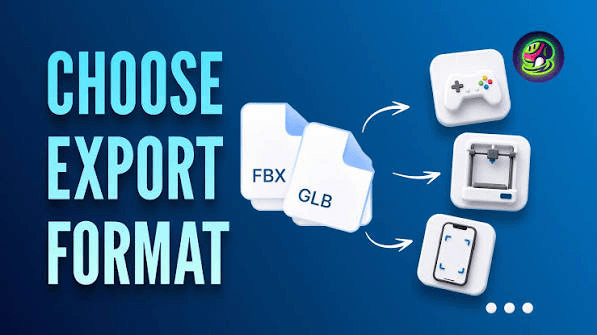
Most color-loss problems do not start in Blender, Unity, or the slicer. They start one step earlier, when the wrong export format leaves Meshy AI, or when the texture package gets broken on the way out. If you found this guide after a Meshy AI Review, this is the part most reviews skip.
The short version is simple. If color matters, export GLB first. If you must use OBJ or FBX, keep the texture files with the model and verify the import before you touch anything else. If you export STL, accept that you are leaving a color-safe workflow behind.
This guide is written for the real handoff. Not for the marketing turntable. We will walk through the exact order that protects color best, explain why it works, and flag the mistakes that make a model turn flat, gray, or washed out.
Key takeaways
- GLB is the safest first export when you want Meshy color to survive the trip.
- OBJ can work, but only if the OBJ, MTL, and texture files stay together.
- FBX is useful in some pipelines, but it deserves a test import before you commit.
- STL is fine for geometry-only printing and the wrong choice when texture color matters.
- In Blender, Base Color should stay in sRGB, while roughness, metallic, and normal maps should be treated as Non-Color data.
Why Meshy exports lose color in the first place
Meshy is rarely the whole problem. The real failure usually comes from one of four places. You exported the wrong format. You downloaded a format that separates the mesh from the textures, then moved the files apart. Your next app imported the textures into the wrong material slots. Or the color space changed on import.
That is why a model can look perfect inside Meshy and wrong everywhere else. The viewport is still reading the material package the way Meshy expects. Your next tool may not. Once the model leaves the platform, you are responsible for the handoff.
The good news is that the fix is not mysterious. A clean export pipeline solves most of it. The first rule is to think like a production artist, not a prompt chaser. Protect the texture package. Verify the first import. Then edit.
If you are still deciding whether Meshy is the right generator in the first place, compare it with its closest hosted rival in Meshy AI vs Tripo 3D in 2026.
Step 1: Finish the texture pass before you download anything
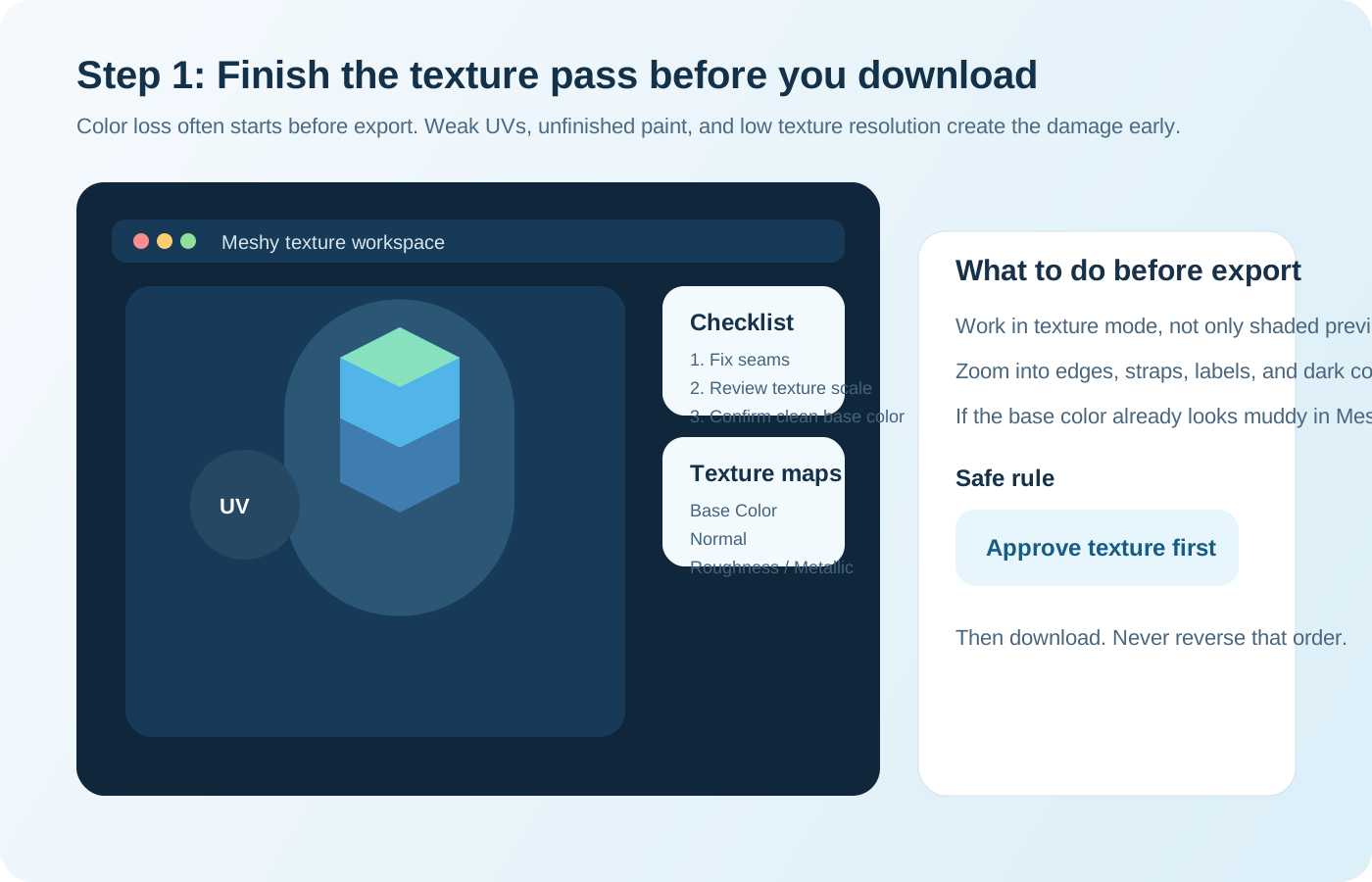
Do not export the second the model looks good from one angle. Rotate it. Zoom in. Check seams, dark corners, tiny text, edge wear, straps, labels, and any high-contrast border. If the base color already looks weak in Meshy, export will not save it.
This matters more than people think. Meshy can generate a strong hero view and still hide a soft edge or muddy side panel that becomes obvious later. The handoff only preserves what is there. It does not improve it.
If the model gives you access to texture controls or downloadable maps, treat the base color map as the asset that matters most for this article. Roughness, metallic, and normal maps still matter, but when users say color is gone, they are almost always talking about the base color map or the link to it.
- Approve the model in texture mode, not only in a shaded or stylized preview.
- Check the back, underside, and hidden side panels before export.
- If labels, decals, or painted edges look soft, fix them before you download.
- If the texture resolution feels too low for your target use, regenerate or refine before export.
Step 2: Export GLB first if you want the lowest-risk color handoff
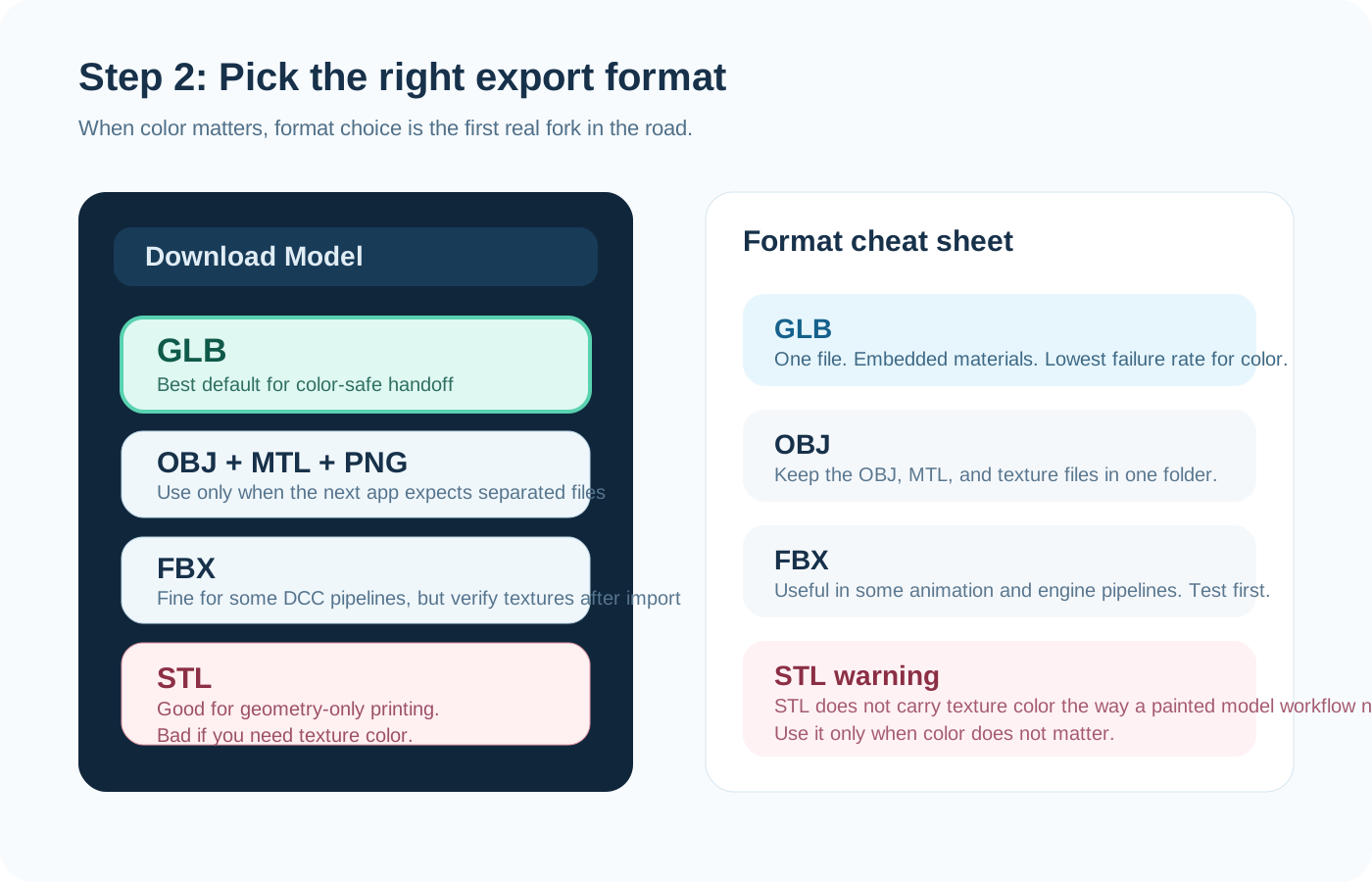
If you only remember one line from this article, remember this one: start with GLB. In a practical workflow, GLB is the cleanest first test because it keeps mesh, material, and texture information together in one package. Fewer loose files means fewer chances to break the link.
That does not mean GLB is magic. It means GLB gives you the smallest number of moving parts. For most creators, that is enough to avoid the classic failure where the model opens but the color map is missing or the material comes in flat.
Meshy's own export guidance separates color-safe model formats from print-first formats. That is the right mental model. Use a format that was built for textured 3D assets when your next stop is Blender, a game engine, a viewer, or a render workflow.
- Use GLB for the first download and first verification pass.
- Name the file clearly so you can compare versions later.
- Import the untouched GLB once before making any manual material edits.
- Save a backup copy of the original export before cleanup.
Step 3: If you need OBJ or FBX, protect the texture package like it is part of the model
Sometimes GLB is not the format you need. Maybe your next tool wants OBJ. Maybe a specific engine or DCC pipeline prefers FBX. That is fine. The rule just changes. If you export OBJ, the model is no longer one self-contained package. The mesh file, the MTL file, and the texture maps need to stay together.
This is where many color failures happen. A user drags only the OBJ into a new folder. Or renames the PNG. Or sends the mesh to a teammate without the material file. The model opens. The color does not. That is not a Meshy issue. That is a broken handoff.
FBX can work well too, but it is more sensitive to the way the next application interprets the material setup. If I were teaching a junior artist, I would still tell them to test GLB first, then move to FBX only when the rest of the pipeline asks for it.
If you are shopping for a cheaper or local-first workflow before you worry about export hygiene, read Best Free Meshy AI Alternative in 2026 and Meshy Alternatives: Tripo, Trellis 2, or Any Other?.
- For OBJ, keep the OBJ, MTL, and all texture files in one folder.
- Do not rename texture files until after a successful import test.
- If you zip the export for a teammate, zip the whole folder, not one file.
- If you use FBX, verify the base color slot immediately after import.
Step 4: Check the import before you edit anything
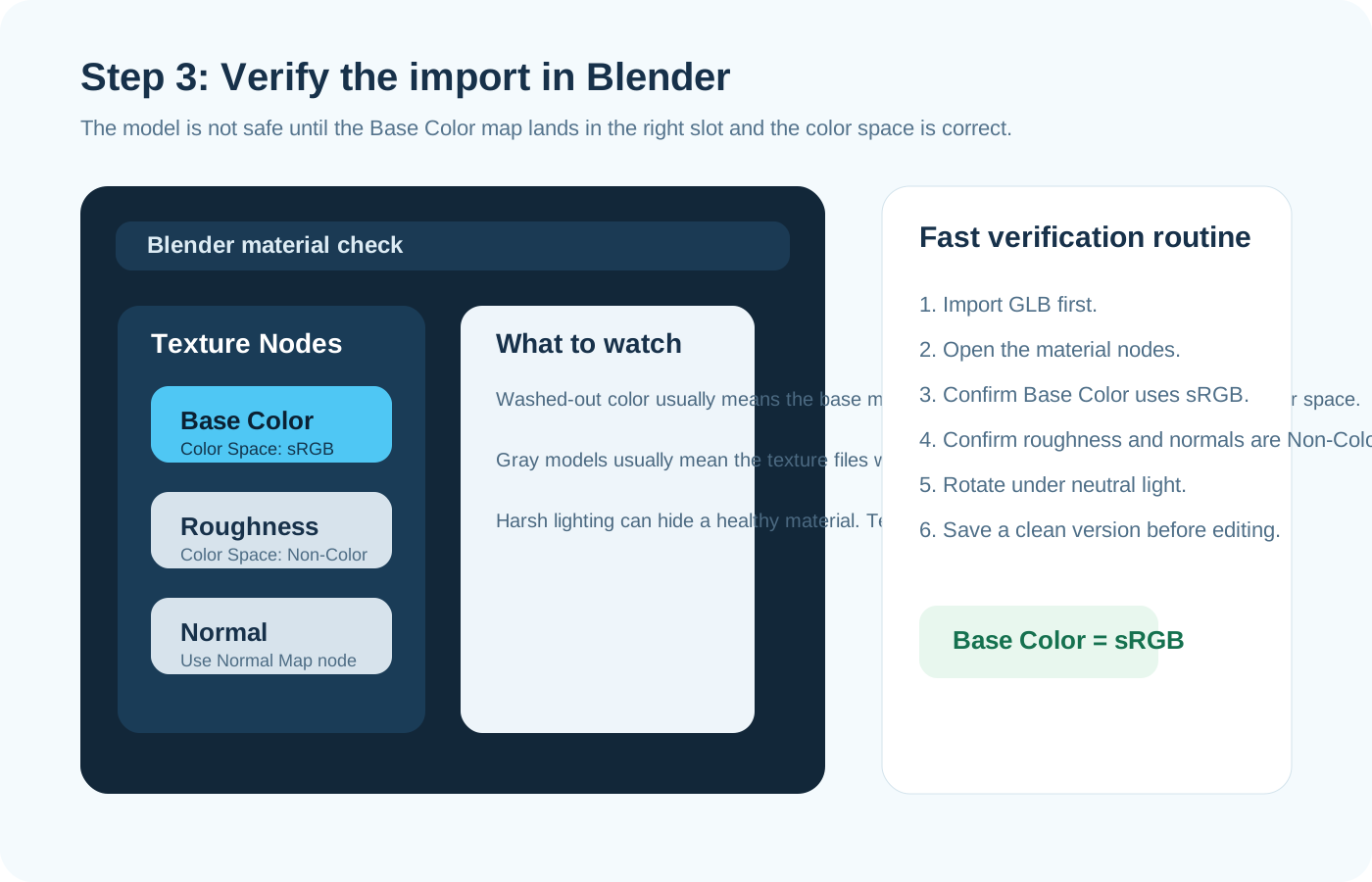
The first import is the truth test. Open the file in Blender or the app you actually plan to use. Do not start sculpting, decimating, baking, or repacking UVs yet. First ask one question: did the color survive the trip intact?
In Blender, open the material nodes right away. The base color texture should land in the Base Color input and stay in sRGB. Roughness, metallic, and normal maps are data maps. They should not be treated as color. If those maps come in under the wrong color-space setting, the material can look wrong even when the texture files are present.
This is also the moment to check whether the model only looked good under Meshy's lighting. Rotate it under neutral light. Switch between Material Preview and Rendered view. If the color looks healthy there, your handoff is probably sound.
- Base Color map: keep it in sRGB.
- Roughness and metallic maps: treat them as Non-Color data.
- Normal map: run it through a Normal Map node, not straight into the shader.
- If the model opens gray, assume the texture link broke before you assume the texture is bad.
Step 5: Know which exports are fine for geometry and bad for color
STL belongs in this conversation because it causes so much confusion. STL is still useful. It is simple. It is common. It is accepted by many print workflows. It is also the wrong format when your goal is to preserve painted texture color from Meshy.
That is not a bug. It is just the wrong job for the tool. When you export STL, think geometry. Think shape. Think print volume. Do not think material richness, painted decals, or a textured game-ready handoff.
The same logic applies when people convert files too early. If your target workflow supports textured assets, stay in a textured format as long as possible. Convert only when the next tool truly needs it.
- Use STL when the shape matters and the texture does not.
- Do not choose STL for a Blender, viewer, or engine workflow that needs painted color.
- Keep the richer source export archived even if you later make a geometry-only version.
Step 6: Fix washed-out color with the boring checks first
When color looks wrong, people jump to exotic explanations. They blame the model. They blame the app. They assume Meshy failed. Most of the time the cause is dull and fixable. The base color map did not land in the right slot. The file path broke. The texture came in as Non-Color by mistake. Or a viewport setting made the material look flatter than it really is.
Start with the simple checks. Is the texture file present? Is it linked? Is the base color texture set to sRGB? Is the shader using the right material node chain? Is there a second material overriding the first one? Has the app packed the textures into a different path?
Do that before you re-export. A second export will not help if the problem is in the import. One quiet pass through the material settings solves more cases than another round of guessing.
Step 7: Pick the export path by destination, not by habit
If the destination is Blender, a GLB-first workflow is the safest default. If the destination is a game engine, GLB is still a good test export, then switch formats only if the engine or your team asks for a different standard. If the destination is a print workflow where color is irrelevant, STL can make sense. If the destination is full-color printing, confirm that workflow with the printer or software before you strip away texture information.
This sounds obvious, but it saves time. Many users do not really have a Meshy export problem. They have a mismatch between destination and format. They keep choosing the file type they chose last week, not the file type the current job needs.
A clean pipeline is not glamorous. It is just specific. One target. One safe export. One verification pass. Then edits.
- Blender or general 3D work: start with GLB.
- OBJ-only pipelines: export OBJ and keep every sidecar file together.
- FBX-specific pipelines: test the material import before production work.
- Geometry-only print workflows: STL is acceptable if color truly does not matter.
Mistakes I see again and again
First mistake: exporting too early. Users lock in a weak texture, then blame the export for a flaw that already existed. Second mistake: downloading OBJ and moving only the mesh file. Third mistake: treating every imported map like color data. Fourth mistake: converting to STL, then wondering where the color went.
Fifth mistake: fixing the material, then overwriting the original export. Keep a clean untouched version. You will need it when a teammate asks whether the problem came from Meshy or from the edits that happened later.
None of these mistakes are dramatic. They are ordinary. That is why they hurt real work. They show up in the last ten percent of a task, when you thought you were already done.
Final take
If you want the simplest professional answer, here it is. Finish the texture pass in Meshy. Export GLB first. Import it into Blender. Confirm the base color map is present and still in sRGB. Only then move deeper into your pipeline.
If you need OBJ or FBX, that is fine. Just stop pretending those formats are carefree. They need a cleaner handoff. Protect the files. Verify the import. Keep the original export untouched.
Meshy is good at getting you to a textured first asset fast. The last step still belongs to you. Handle the export with the same care you gave the prompt, and the color usually survives.
Frequently Asked Questions
Is Meshy AI free?▾
Yes, Meshy had a free plan listed on its public pricing page on July 30, 2026. That free tier is useful for learning the workflow, but it comes with tighter generation and download limits than the paid plans. Check the live pricing page before you rely on any exact limit, because these products change fast.
Is Meshy AI safe?▾
Safe enough for ordinary creator workflows, yes, but use normal judgment. It is a cloud service, so do not upload sensitive client IP, unreleased product designs, or confidential assets unless your contract and Meshy's plan terms allow it. For low-risk concept work, it is a reasonable tool. For sensitive work, read the current privacy and plan terms first.
How good is Meshy AI?▾
Good when you judge it for the right job. Meshy is strong at getting from concept to a workable textured asset quickly, especially when you plan to keep refining the result in Blender or another tool. It is not a replacement for final topology judgment, rigging, or production cleanup.
How much is Meshy AI?▾
On Meshy's public pricing page checked on July 30, 2026, the plans listed were Free, Pro at $20 per month or $240 per year, Studio at $60 per month or $576 per year, and Enterprise with custom pricing. Because plan names and promos can change, confirm the live checkout page before you pay.
What is the safest Meshy export format if I care about color?▾
GLB is usually the safest first export because it keeps the material package together. If you must use OBJ, keep the OBJ, MTL, and texture maps in one folder and test the import before you edit anything.
Why does my Meshy model turn gray in Blender?▾
Most often, the texture files did not come through or the material links broke after export. Check whether the base color texture is still present, whether Blender can see the file path, and whether the base map is actually connected to the Base Color input.